

Trade History is the evidence layer behind your Playbooks. It gives you a structured record of saved trade and lifecycle activity so you can review what happened, which Playbook produced it, and how the result fits into a larger sample.
Instead of judging a strategy from the last setup you remember, use Trade History to move through completed and open records consistently.
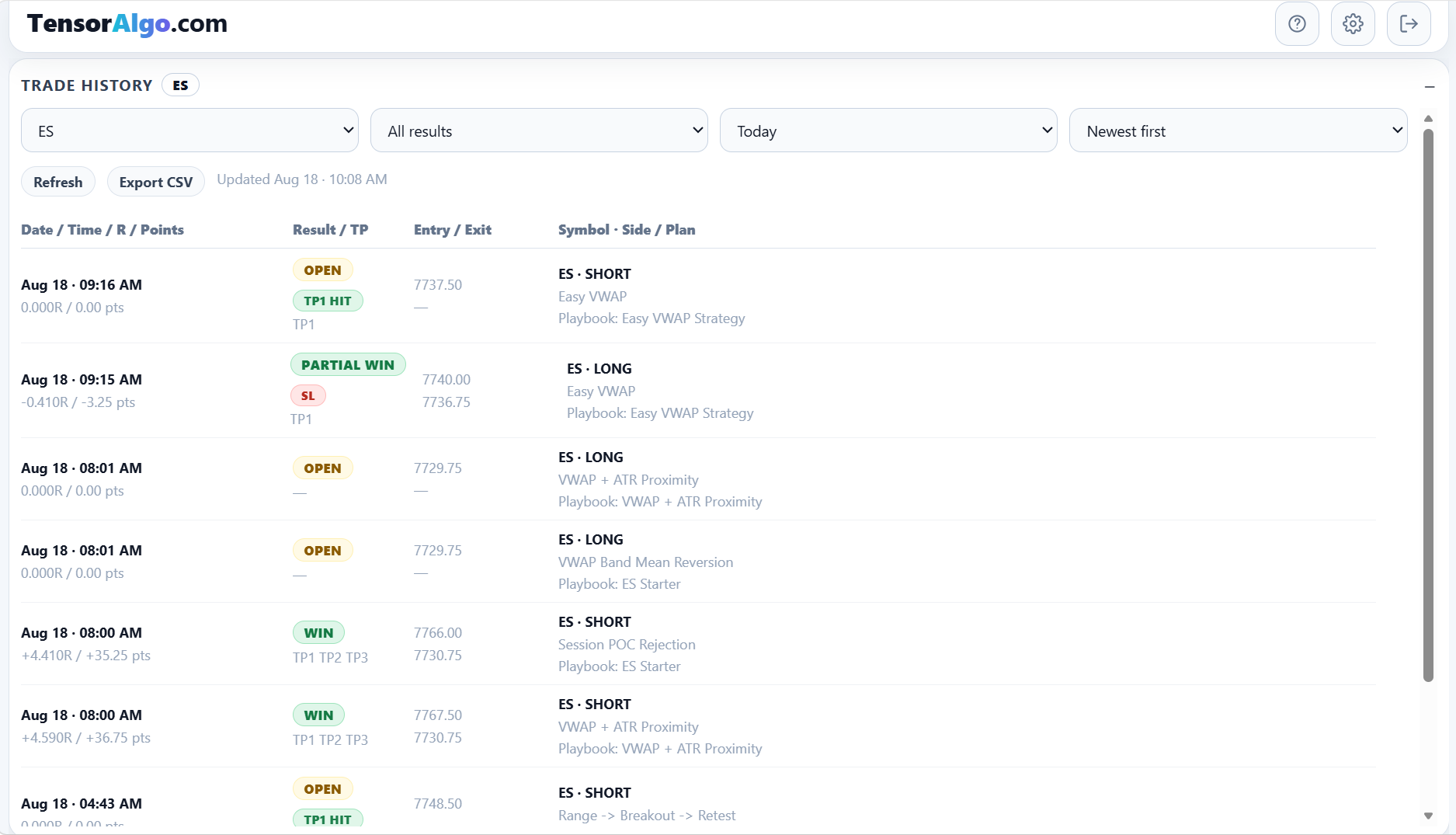
Find the history you want to review
Use the controls at the top of the card to narrow the list by:
- instrument;
- result;
- period;
- specific date when that period is selected;
- newest/oldest sorting.
The historical range you can request depends on the current account entitlement.
A focused filter can answer a specific question—for example, “How did ES Playbooks perform today?”—while a broader period is better when you want enough trades for pattern analysis.
Read an individual row
A Trade History row can include:
- opened or closed time;
- R result and points;
- lifecycle result and target progress;
- entry and exit prices;
- symbol and long/short side;
- strategy/plan name;
- Playbook name;
- other relevant trade metadata.
The combination matters more than any single column. A loss tied to one strategy, for example, is more useful when you can compare it with that same strategy's other outcomes rather than treating it as an isolated event.
Understand open and completed records
Trade History can contain lifecycle records that are still open as well as completed outcomes.
Open rows can show current target/lifecycle progress while completed rows provide the final evidence used in performance review. Avoid interpreting an unfinished record as if it were a completed result.
Review Trade History beside Trade Tape
Trade Tape focuses on current plans and lifecycle activity. Trade History focuses on the saved historical record.
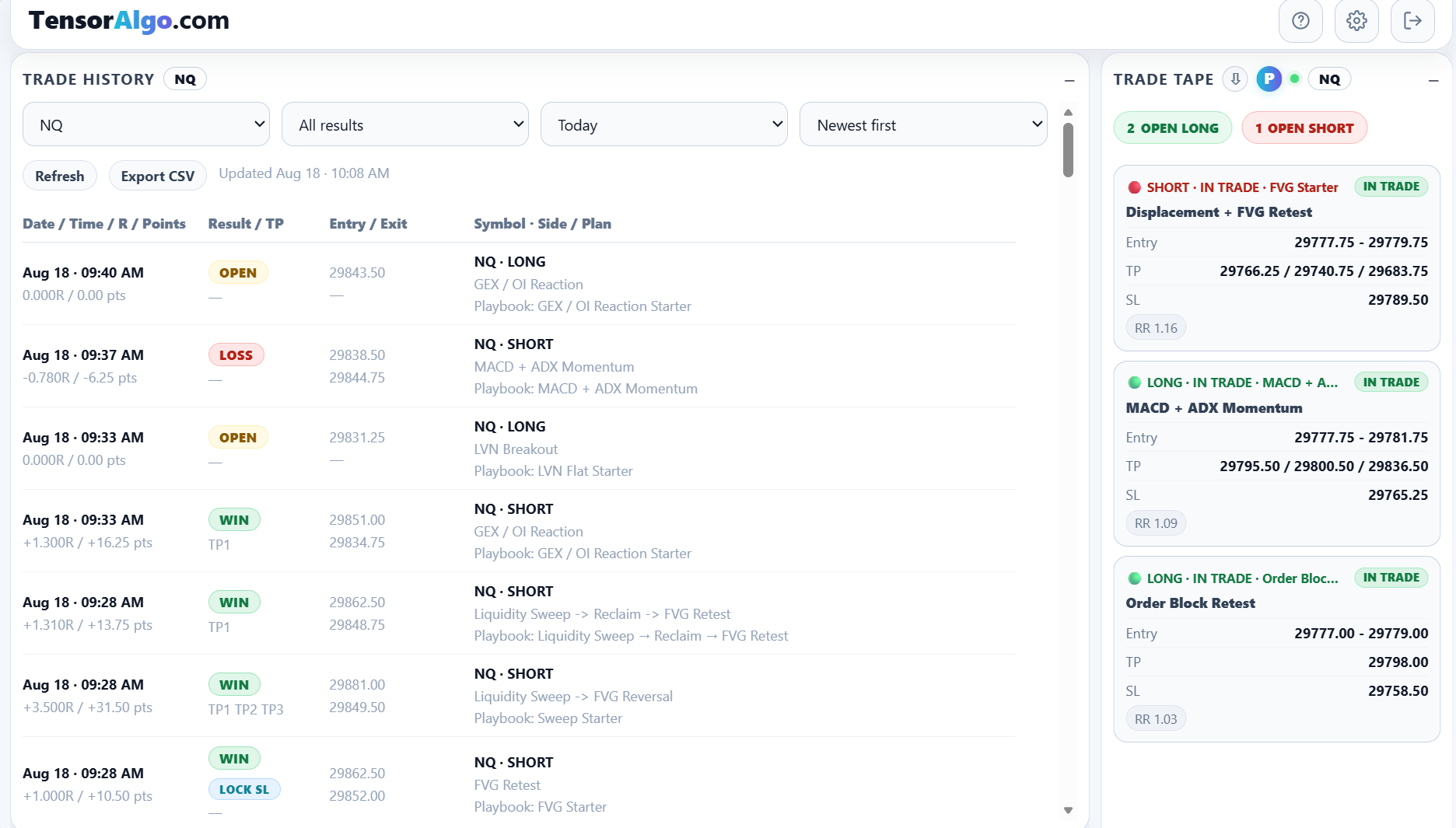
Using them together gives you two useful perspectives:
- Trade Tape: what is currently planned, triggered, or in trade;
- Trade History: what has been recorded and how previous setups resolved.
Use a specific date
- Select the specific-date period.
- Choose a date within the account's available historical range.
- Review the records for that completed or current day.
Future dates cannot be selected.
Specific dates are useful when you want to compare Trade History with a journal, chart review, or a saved Trade Intelligence report from the same session.
Refresh and load additional history
Select Refresh when you want the latest saved state.
When more matching rows exist than are currently displayed, use Load more to continue through the history without changing your filters.
Export when your account includes CSV Trade Export
Eligible accounts can select Export CSV to work with Trade History outside TensorAlgo. CSV export is useful for your own spreadsheet analysis, archiving, or comparing the raw history with another journal workflow.
Turn history into Trade Intelligence
Trade History is more valuable when it leads to a question instead of just more scrolling.
A useful review sequence is:
- identify the market, Playbook, or period you want to understand;
- inspect the actual rows and lifecycle outcomes;
- note whether the pattern is concentrated in one strategy, direction, or session;
- open Trade Intelligence Center for deterministic aggregated analysis;
- use an optional AI review when you want a deeper synthesis or action plan.
When Trade History looks empty
“No trade history for this filter yet” means there are no matching saved records for the current filter combination. It does not automatically mean Trade History is broken.
Try these checks first:
- switch the result filter to All results;
- confirm the selected instrument matches the Playbook you expect;
- broaden the period or choose a more recent date;
- confirm that the relevant Playbook has produced recorded lifecycle activity;
- refresh the card once.
If history you know should exist is still missing after those checks, use the dedicated Trade History troubleshooting guide or open a Support Ticket with the market, approximate time, and Playbook name.