
Trade Alerts notify you when an alert-enabled Playbook reaches selected simulated trade lifecycle events. You decide which lifecycle events matter, which Playbooks may send them, and how the current device should deliver them.
Trade Alerts are a delivery feature. They do not activate a Playbook, place trades, or keep a Playbook evaluating by themselves. An alert can only be created while that Playbook is actually being evaluated.
Choose which lifecycle events alert you
Open Settings → Trade Alerts. The Alert Center shows the current Browser alerts, Web Push, and dashboard-sound state, followed by the lifecycle event preferences.
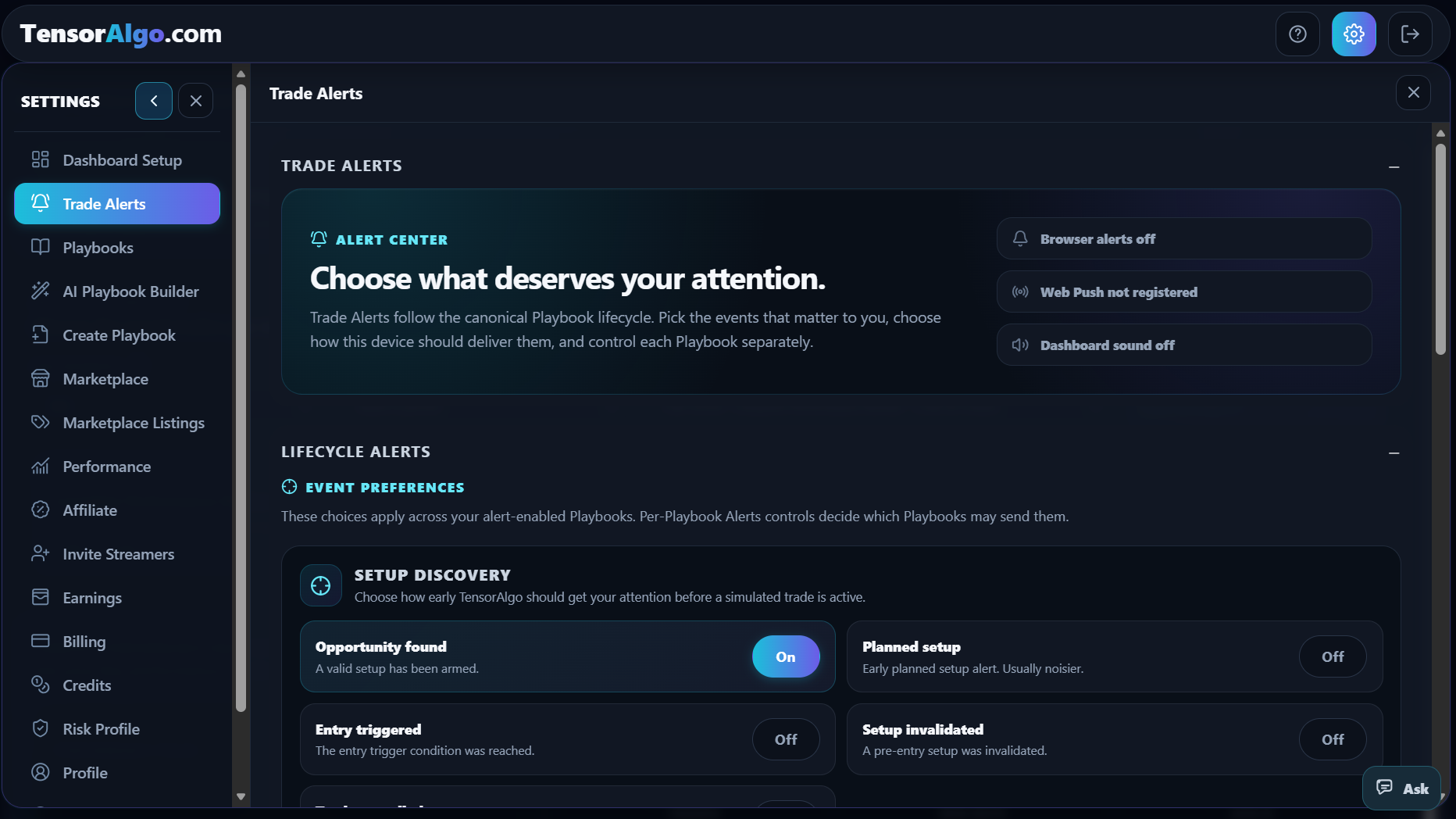
The lifecycle controls are grouped by purpose:
- Setup discovery — Opportunity found, Planned setup, Entry triggered, Setup invalidated, and Trade cancelled.
- Trade management — Trade entered and Exit warning.
- Targets & outcome — TP1 hit, TP2 hit, TP3 hit, Stop hit, and Trade closed.
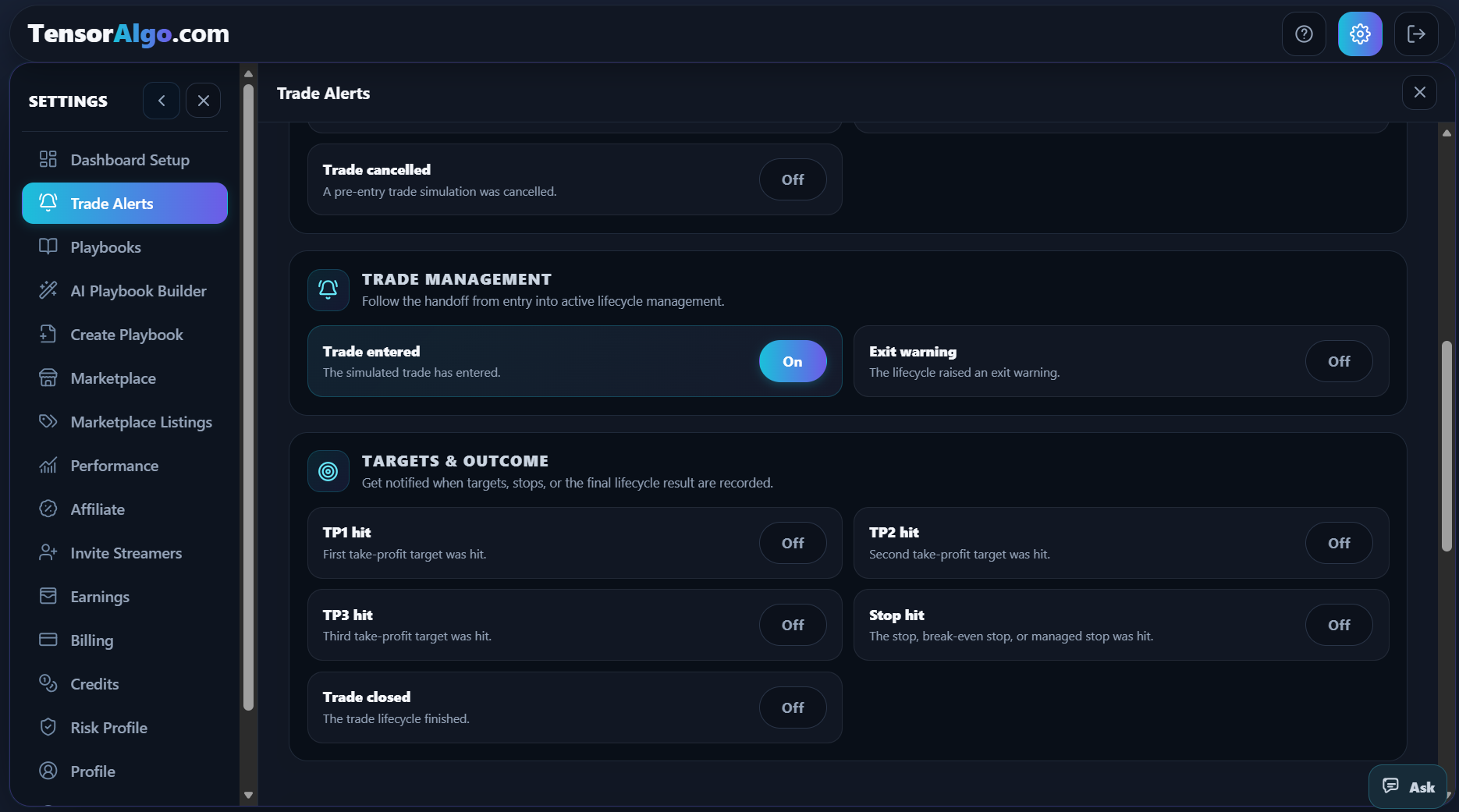
The current defaults are:
| Alert | What it means | Default |
|---|---|---|
| Opportunity found | A valid setup becomes armed. | On |
| Planned setup | An earlier planned setup is detected. This can be noisier. | Off |
| Entry triggered | The entry trigger condition is reached. | Off |
| Setup invalidated | A pre-entry setup becomes invalid. | Off |
| Trade cancelled | A pre-entry simulated trade is cancelled. | Off |
| Trade entered | The simulated trade reaches the in-trade state. | On |
| Exit warning | The lifecycle raises an exit warning. | Off |
| TP1 hit | The first take-profit target is reached. | Off |
| TP2 hit | The second take-profit target is reached. | Off |
| TP3 hit | The third take-profit target is reached. | Off |
| Stop hit | The stop, break-even stop, or managed stop is reached. | Off |
| Trade closed | The simulated trade lifecycle finishes. | Off |
These event switches apply across your alert-enabled Playbooks. The separate per-Playbook Alerts checkbox decides which Playbooks may send those selected events.
Control alerts for one Playbook
Each Playbook has its own Alerts control. Turn it off when you want that Playbook to keep operating normally without sending Trade Alerts, while leaving alerts enabled on other Playbooks.
In Settings → Playbooks, the Alerts checkbox sits beside Background evaluation on each Playbook card.
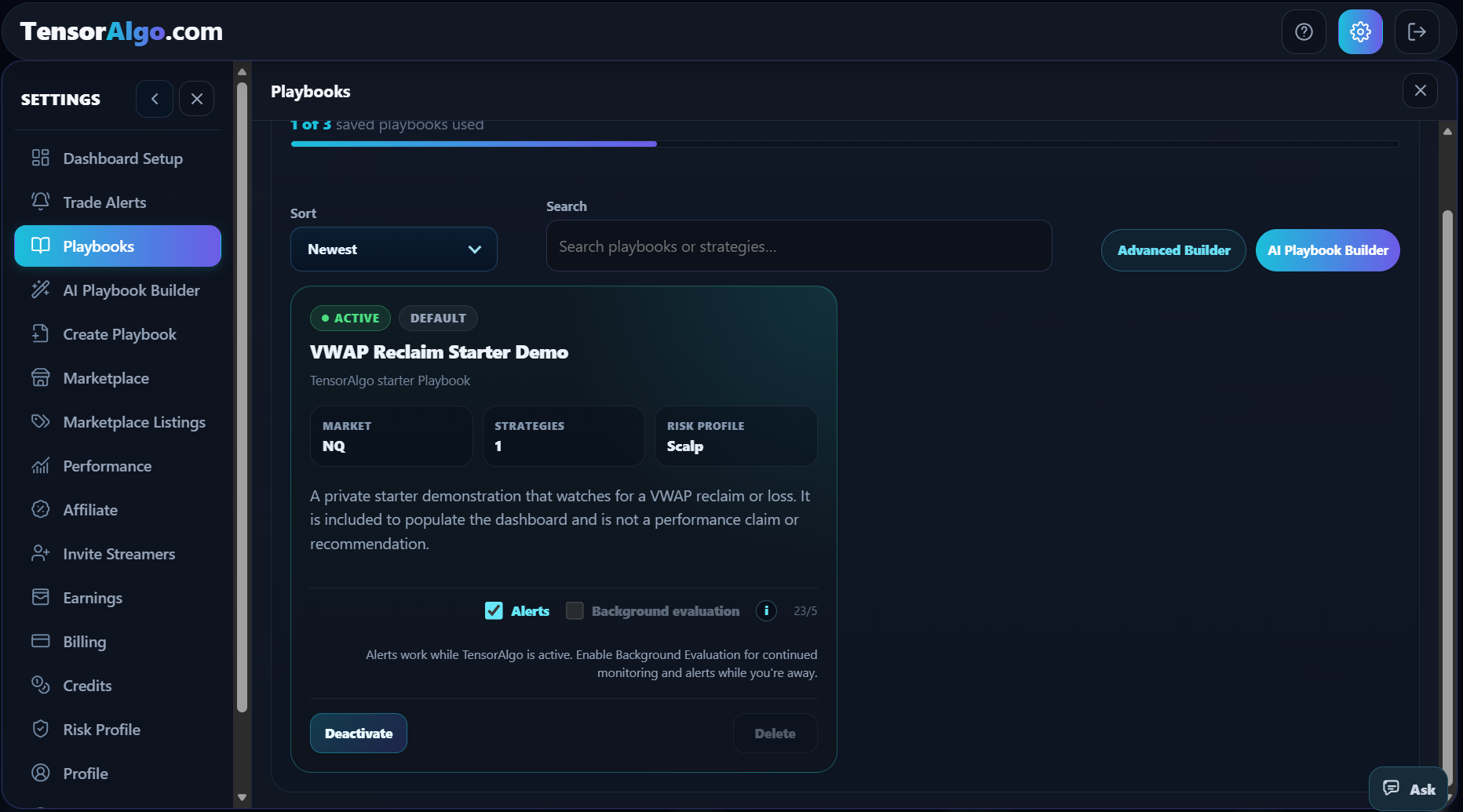
The same two controls are available directly on the Playbook card in the main dashboard.
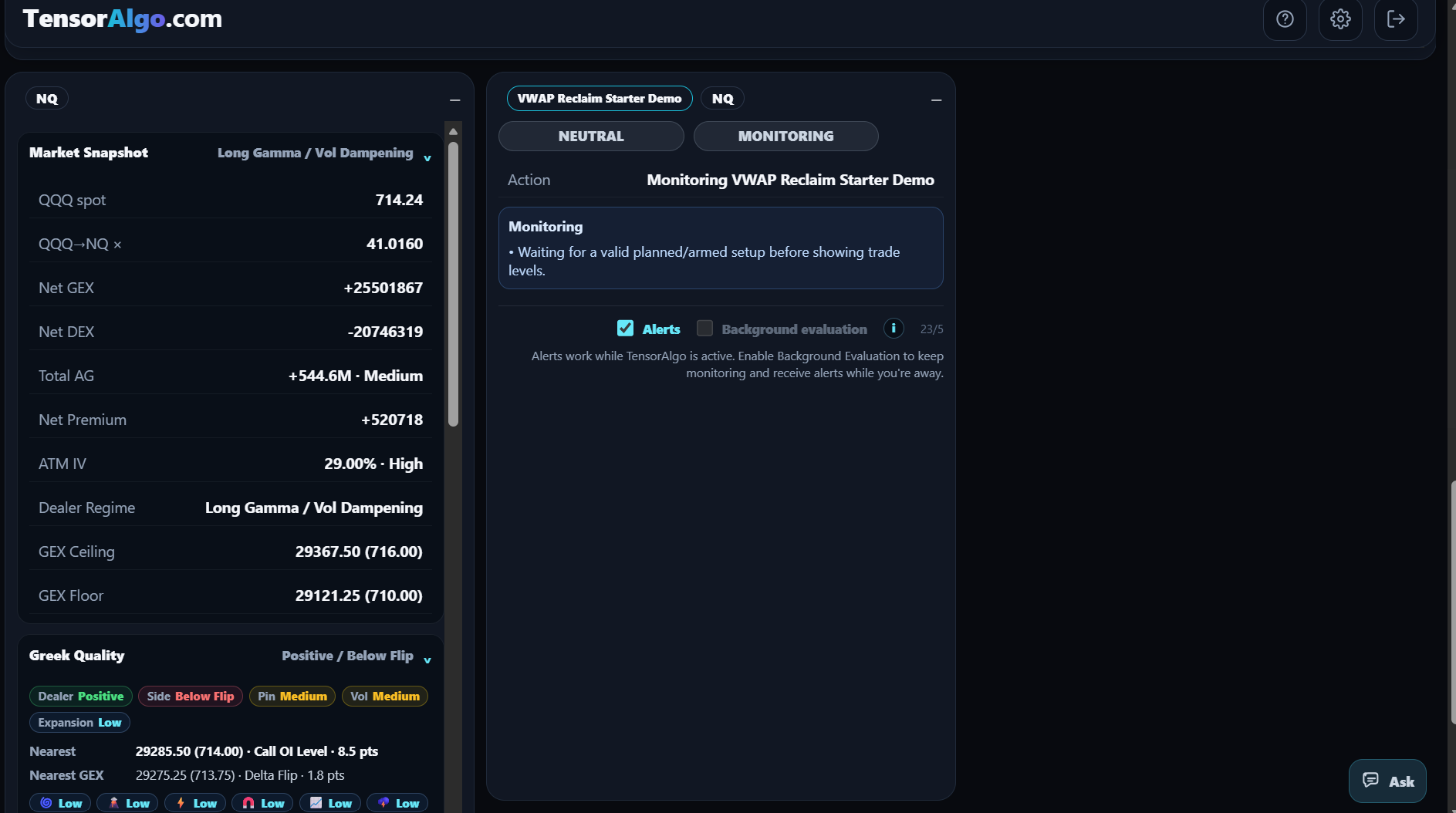
The controls have different jobs:
- Alerts — allows that specific Playbook to send the lifecycle events selected in Settings → Trade Alerts.
- Background evaluation — controls whether an eligible Playbook continues supported evaluation while TensorAlgo is closed.
If Alerts are enabled but Background Evaluation is off, alerts can still arrive while TensorAlgo is active and the Playbook is being evaluated. Enable Background Evaluation when you want eligible monitoring to continue while you are away.
Choose how this device delivers alerts
The Delivery section keeps browser notifications and dashboard sound separate.
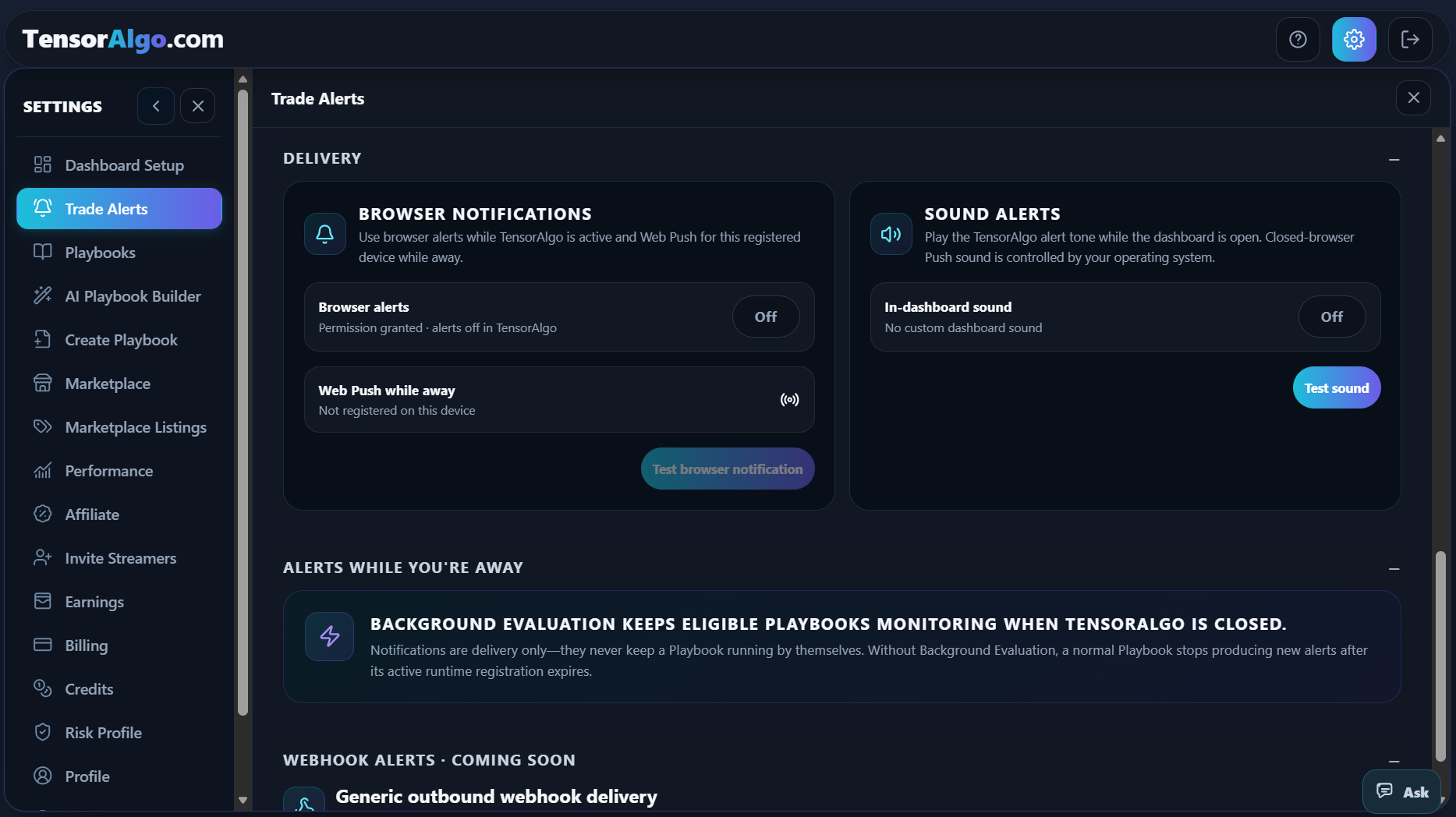
Browser notifications
Browser alerts controls whether TensorAlgo may deliver browser notifications for enabled Trade Alert events on the current device.
Web Push while away shows whether this browser/device has an active Push subscription. When it is registered, the device can receive eligible Push notifications even when the TensorAlgo page is not open.
When you enable browser alerts for the first time, your browser may ask for notification permission. Permission must be granted before notifications can be shown. Use Test browser notification to verify the current device.
Push registration is device-specific. Enabling it on one computer or browser does not automatically register every other device.
Browser alerts can work even when Web Push is unavailable
TensorAlgo separates local browser notification display from background Web Push registration.
If browser notification permission is granted, Browser alerts can continue working while TensorAlgo is active even when the browser/device cannot finish a background Push subscription. In that state, the Trade Alerts page can report Browser alerts as enabled while Web Push remains unavailable or not registered.
Use the Web Push retry action when it is offered. A background Push failure does not require TensorAlgo to remove a working local-notification path.
Installing TensorAlgo as an app is also separate from notification permission and Push registration. The installed app does not automatically enable Trade Alerts or register Web Push.
Sound alerts
Turn on In-dashboard sound to play the TensorAlgo alert tone together with enabled Trade Alerts while the dashboard is open and receiving runtime updates. Use Test sound to verify audio.
Modern browsers can require a normal user interaction before page audio is allowed. After a reload, using the dashboard lets TensorAlgo prepare the sound engine for later alerts.
For Web Push received while the browser is closed or in the background, notification sound behavior is controlled by your browser and operating system rather than TensorAlgo's custom dashboard tone.
Alerts while you're away
Background Evaluation keeps eligible Playbooks monitoring when TensorAlgo is closed.
For a normal Playbook without Background Evaluation, alerts are available while TensorAlgo is active and the Playbook is being evaluated. The notification subscription itself does not keep that Playbook running. When evaluation stops, there is no new lifecycle event to send.
For a Playbook with active Background Evaluation, supported evaluation continues while you are away. If Web Push is registered on the device, the Playbook's Alerts checkbox is enabled, and the relevant lifecycle event is enabled, TensorAlgo can deliver the resulting Trade Alert even while the dashboard is closed.
Background Evaluation remains a separate paid add-on for eligible Playbooks. Trade Alerts themselves do not replace it or extend evaluation time. For a rented Playbook, Background Evaluation works only while the rental itself remains valid.
Closing TensorAlgo is different from logging out
Closing the TensorAlgo tab or browser does not unregister Web Push. That is intentional so a registered device can still receive eligible alerts while you are away.
Explicitly logging out is different. TensorAlgo removes the current browser/device's Push subscription before the account session is cleared. This prevents private Trade Alerts from continuing on a shared or signed-out device.
Logging out one device does not remove Push subscriptions on your other registered devices, and it does not switch off your account-wide Browser Alerts preference. After signing back in, register Web Push again on that browser if you want away alerts on that device.
Open the relevant trade from a notification
A real Trade Alert carries available instrument, trade, Playbook, and lifecycle-event context. Clicking it opens TensorAlgo and attempts to take you to the most relevant Trade Tape context.
When the matching Trade Tape is available, TensorAlgo focuses the relevant instrument/trade context. If an exact Trade Tape target is not available, it can fall back to the matching Playbook context. Test notifications return to Trade Alerts settings instead of opening an unrelated dashboard location.
If notifications are not arriving
Check these items in order:
- confirm Browser alerts is On in Settings → Trade Alerts;
- confirm the lifecycle event you expect is On;
- confirm the relevant Playbook's Alerts checkbox is enabled;
- confirm browser notification permission for
app.tensoralgo.comis allowed; - for alerts while the page is closed, confirm Web Push while away says Registered on this device;
- use Test browser notification to check the current device;
- check your operating-system notification settings if no toast is visible;
- confirm the Playbook is actually being evaluated at the time of the expected event;
- if TensorAlgo is closed, confirm that Playbook has active Background Evaluation.
For sound, also confirm In-dashboard sound is On and use Test sound. Custom TensorAlgo sound requires the dashboard to be open; background Push sound is controlled by the browser/operating system.
If a registered device still cannot receive the test notification, include the browser name, operating system, and the exact message shown under Browser notifications when you open a Support Ticket.