

The TensorAlgo Marketplace makes it easy to add another trader's published Playbook to your own workspace without buying it outright. Renting is a practical way to explore a Playbook, use it while the rental is active, and decide whether it fits the way you trade.
Trial users can browse eligible Marketplace listings and compare the information the creator has made available. Completing a Marketplace rental requires an eligible paid plan.
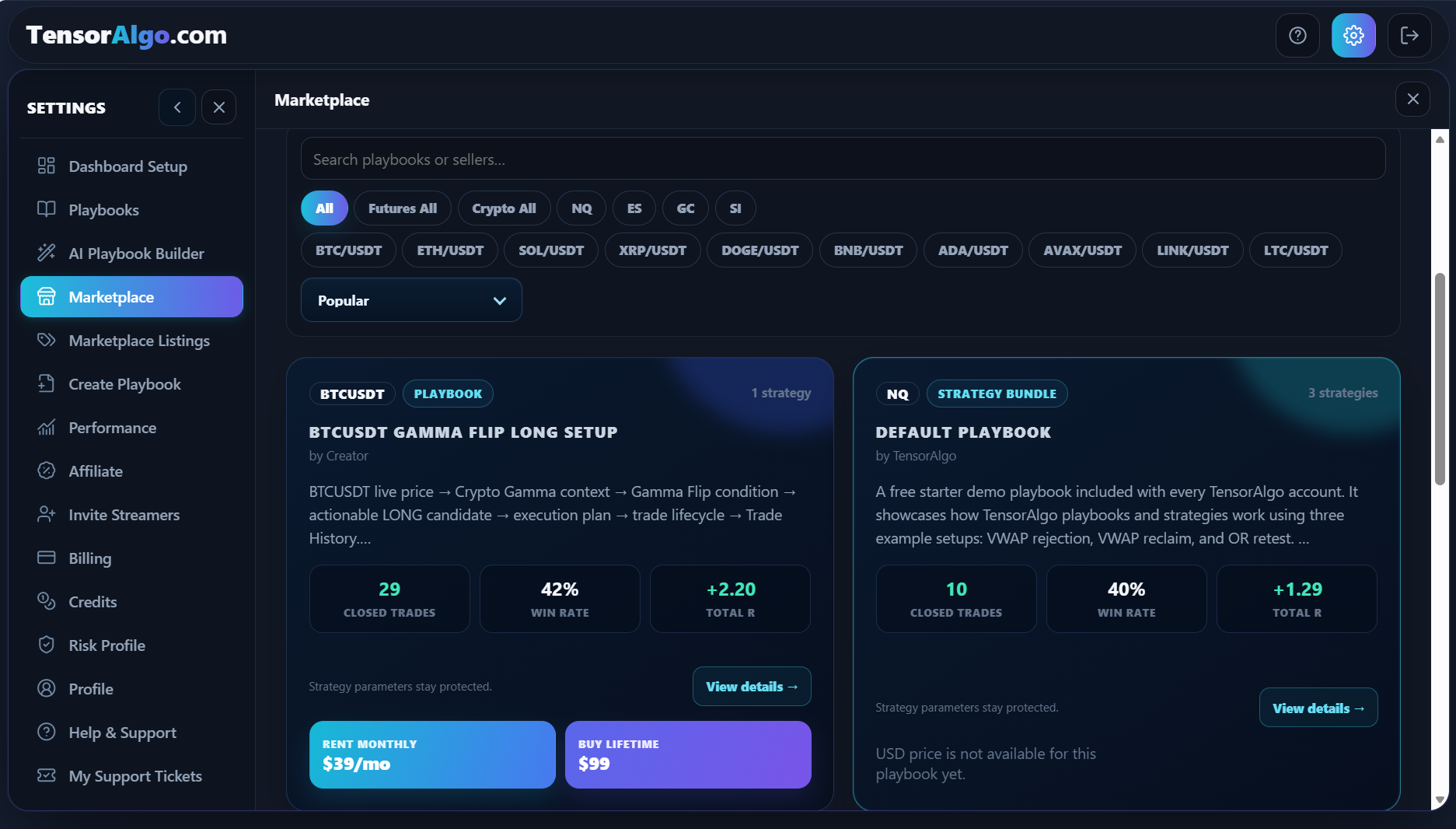
Find a Playbook that fits you
- Open Settings → Marketplace.
- Browse the available listings and open one that interests you.
- Review the supported market, description, available performance information, and rental price.
- Look for a listing that offers Rent monthly.
The listing gives you the information intended for Marketplace users while the creator's protected strategy parameters and proprietary logic remain private.
Rent the Playbook
When you have found a Playbook you want to use, make sure your account has an eligible paid plan. Trial accounts can browse the listing but cannot complete the rental transaction.
- Select Rent monthly on the listing.
- Review the rental checkout and the price shown for the available payment methods.
- Choose the payment method you want to use.
- Review the renewal treatment displayed for that payment method.
- Complete checkout.
- Open Settings → Playbooks and confirm that the rented Playbook is available in your account.
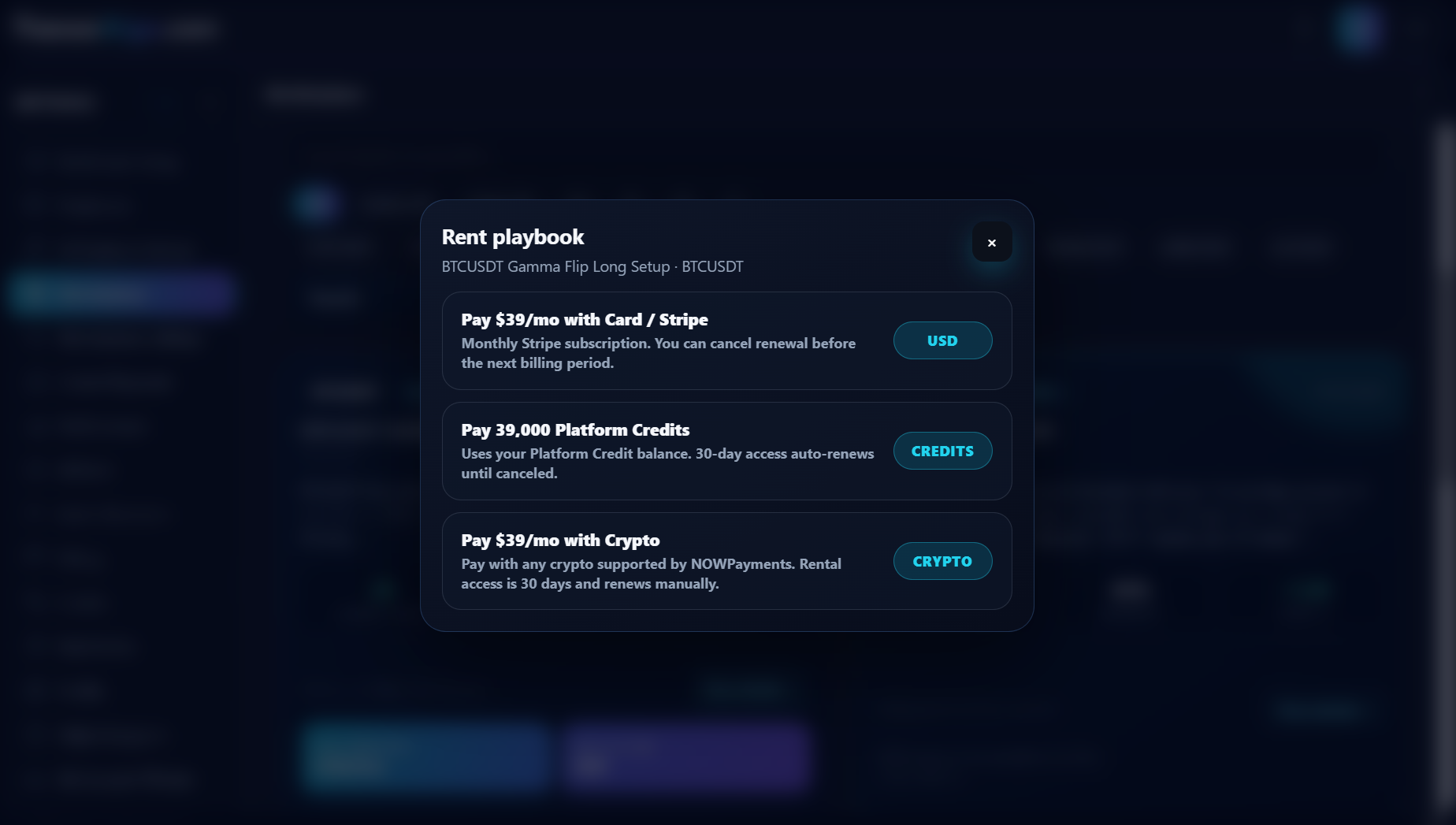
The checkout can offer card payment, Platform Credits, or crypto. The exact price and renewal treatment shown in checkout are the values to rely on for that rental. Eligible direct crypto Marketplace rentals receive the current crypto-payment saving; Platform Credits are spent at their normal Platform Credit price.
Start using your rented Playbook
Once the rental is active, the Playbook appears alongside the Playbooks available to your account. You can review it and activate it when your account has enough active-Playbook and active-strategy capacity and the Playbook passes activation validation.
A rented Playbook counts toward the applicable active-Playbook and active-strategy limits while it is active. It does not count toward the limit for Playbooks you created and saved yourself.
This makes renting useful when you want to add a ready-made Marketplace Playbook to your workflow without rebuilding the strategy yourself.
Version updates during an active rental
Your rental uses an immutable Marketplace Playbook version. If the creator later publishes a qualified material update, TensorAlgo does not silently replace the version you selected. While the rental entitlement remains active, you can keep your current entitled version or choose an available entitled update from the Marketplace detail view.
If the rental expires, version switching is disabled until Marketplace access for that rental is active again. A creator unpublishing the listing stops new Marketplace transactions but does not silently terminate an already-active rental period.
Verified Marketplace renters can leave a verified review from the Marketplace detail view.
Manage the rental later
Deactivating a rented Playbook and ending its rental are separate actions:
- Deactivate when you want to stop active evaluation but keep the rental available.
- Use Settings → Billing → Rented Playbooks or the available rental-management action when you want to review the rental or its renewal.
If the checkout states that the selected payment method renews automatically, the rental can continue until it is cancelled. Crypto rental access is for the displayed period and can require manual renewal.
A few useful things to know
- Trial users can browse the Marketplace, but renting requires an eligible paid plan.
- Active rented Playbooks can use Background Evaluation when the account and Playbook are otherwise eligible. Background Evaluation stops if the rental expires, even if the separate Background Evaluation access period still has time remaining.
- Protected Marketplace strategy details remain hidden to protect the creator's work.
- Your current plan and account state determine the capacity available for active Playbooks and strategies.
Troubleshooting a rental
If a rented Playbook does not appear or cannot be activated, check these items in this order:
- Confirm that checkout completed successfully.
- Open the rental-management area and confirm that the rental is active and has not expired.
- Make sure you are signed in to the same TensorAlgo account that completed the rental.
- Check whether you already reached an active-Playbook or active-strategy limit.
- Refresh the dashboard once and, if needed, sign out and back in.
If you paid with Platform Credits, also confirm that the account had enough Platform Credits for the displayed rental price at checkout.
If the rental is still missing, open a Support Ticket and include the listing title, approximate payment time, and any visible transaction reference. Do not include full payment credentials.