
The TensorAlgo dashboard is where your trading workflow comes together. Instead of jumping between separate pages for market context, Playbooks, live trade activity, history, and review, you can build a workspace around the information you actually want in front of you during a session.
Choose the cards that matter to your process, arrange them for your screen, and keep different markets or workflows focused instead of filling the dashboard with information you do not use.
What you can bring into the dashboard
Depending on your account and the market you are working with, your workspace can include:
- Playbook cards for the trading workflows you want to monitor;
- Trade Tape for the live setup and trade stream;
- Trade History for reviewing recorded trades;
- Trade Intelligence Center for deeper performance review;
- GEX / OI cards for supported futures market context;
- Crypto Gamma cards for supported crypto markets.
The goal is not to use every card at once. A strong dashboard keeps the information that helps you make and review decisions close together.
Shape the workspace around the way you trade
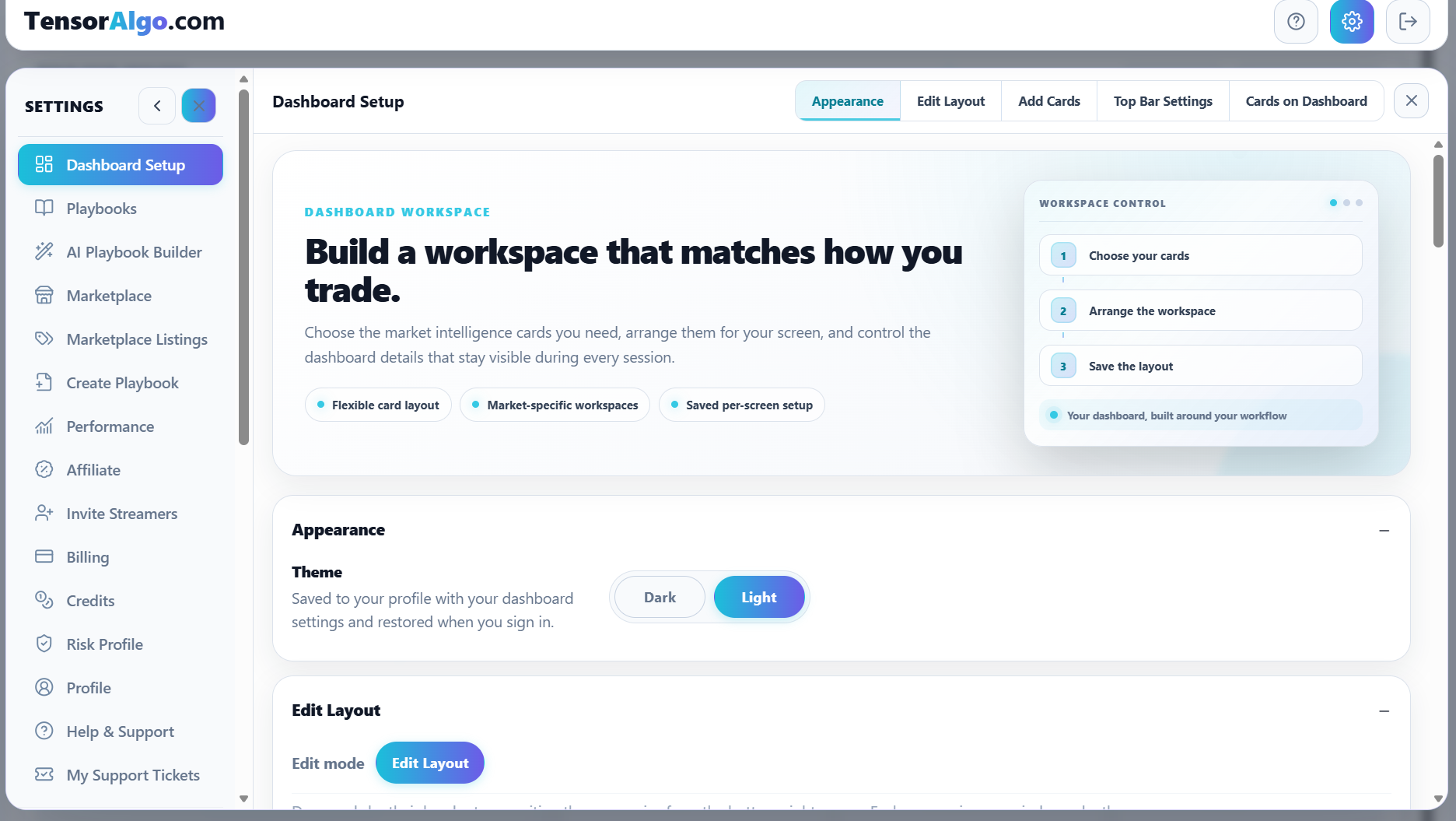
Open Settings → Dashboard Setup when you want to change the workspace.
From there you can:
- choose the dashboard appearance;
- enter layout-editing mode;
- add cards for a selected symbol or group;
- configure available top-bar details;
- review the cards already on the dashboard.
Your layout is saved so the workspace can be restored when you return.
Add the market intelligence you need
Use Add Cards to choose the symbol or group first, then add the available cards for that selection. This makes it easier to build market-specific workspaces instead of mixing unrelated data.
For example, a futures workspace can combine a Playbook with available GEX/OI context, while a crypto workspace can use the cards supported for that crypto market.
Card availability and the number of streamed symbols depend on the account's effective limits.
Keep the dashboard useful as your process evolves
Your ideal workspace may change as you create new Playbooks, focus on another market, or change what you want to review during a session. You can return to Dashboard Setup at any time to add, remove, move, or resize cards without rebuilding the rest of your TensorAlgo account.
See Add and manage dashboard cards for the complete card and layout workflow.
If a card is not available
If a card you expect does not appear in Add Cards, check the selected market first. Some cards are market-specific. Also confirm that your account has available card or streamed-symbol capacity.
If an existing card is present but not showing data, use the troubleshooting article for that feature rather than removing and rebuilding the whole dashboard.