

A useful TensorAlgo dashboard should match the way you trade. Add the market context, Playbooks, trade activity, and review tools you want close together, then arrange them so the most important information is easy to scan during a session.
You can change the layout later without losing the underlying Playbook, trade history, report, or account data behind a card.
Choose the market first
Open Settings → Dashboard Setup → Add Cards and choose the Symbol / group you want to work with.
The selector separates supported futures and crypto markets so the card choices stay relevant to the market you are building around.
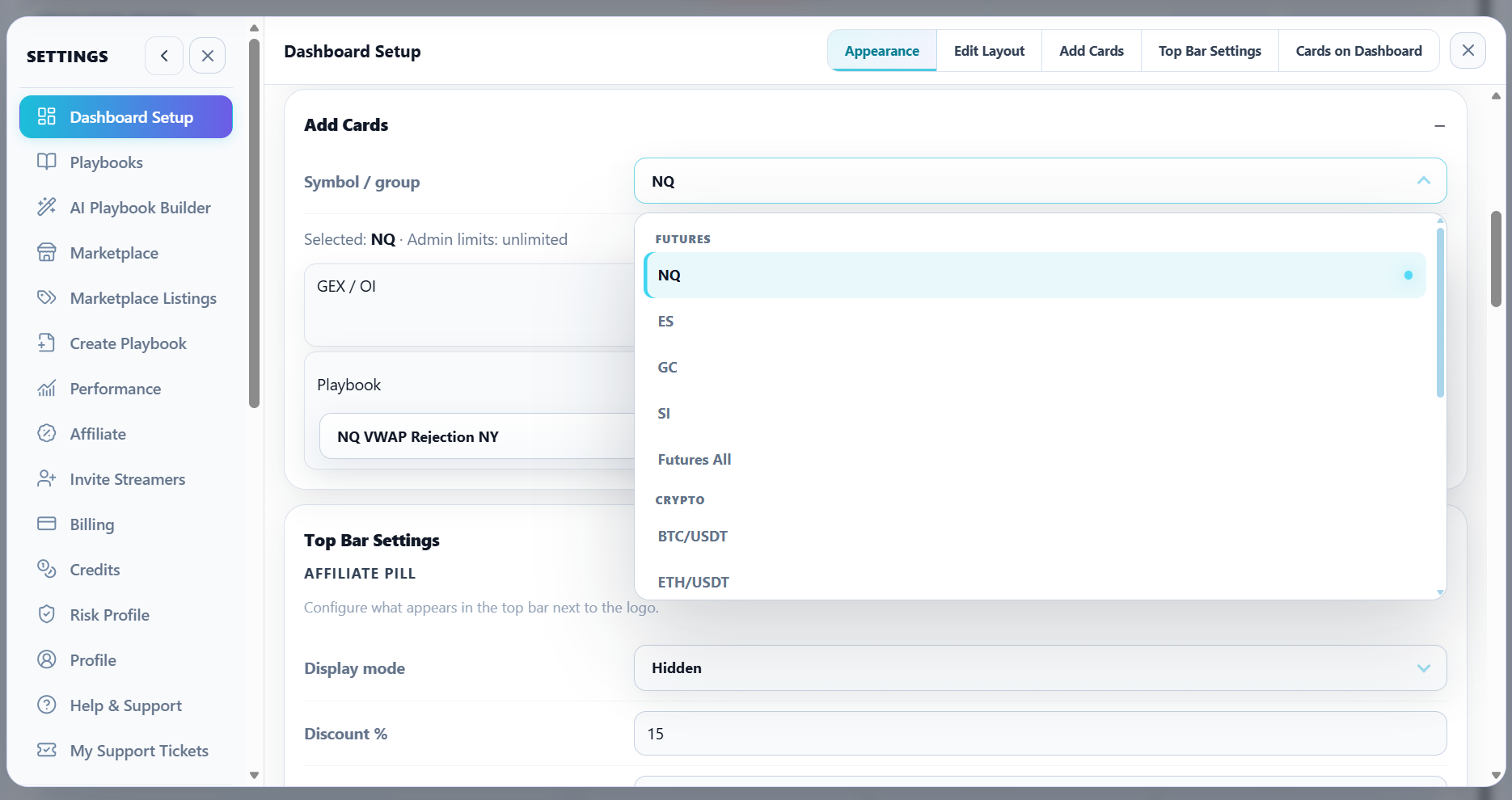
Once a symbol is selected, TensorAlgo shows the card types and Playbooks that can be added for that context.
Add a Playbook or market-context card
- Open Settings → Dashboard Setup.
- Go to Add Cards.
- Select the market or symbol group.
- Choose the card or Playbook you want.
- Select Add when the action is available.
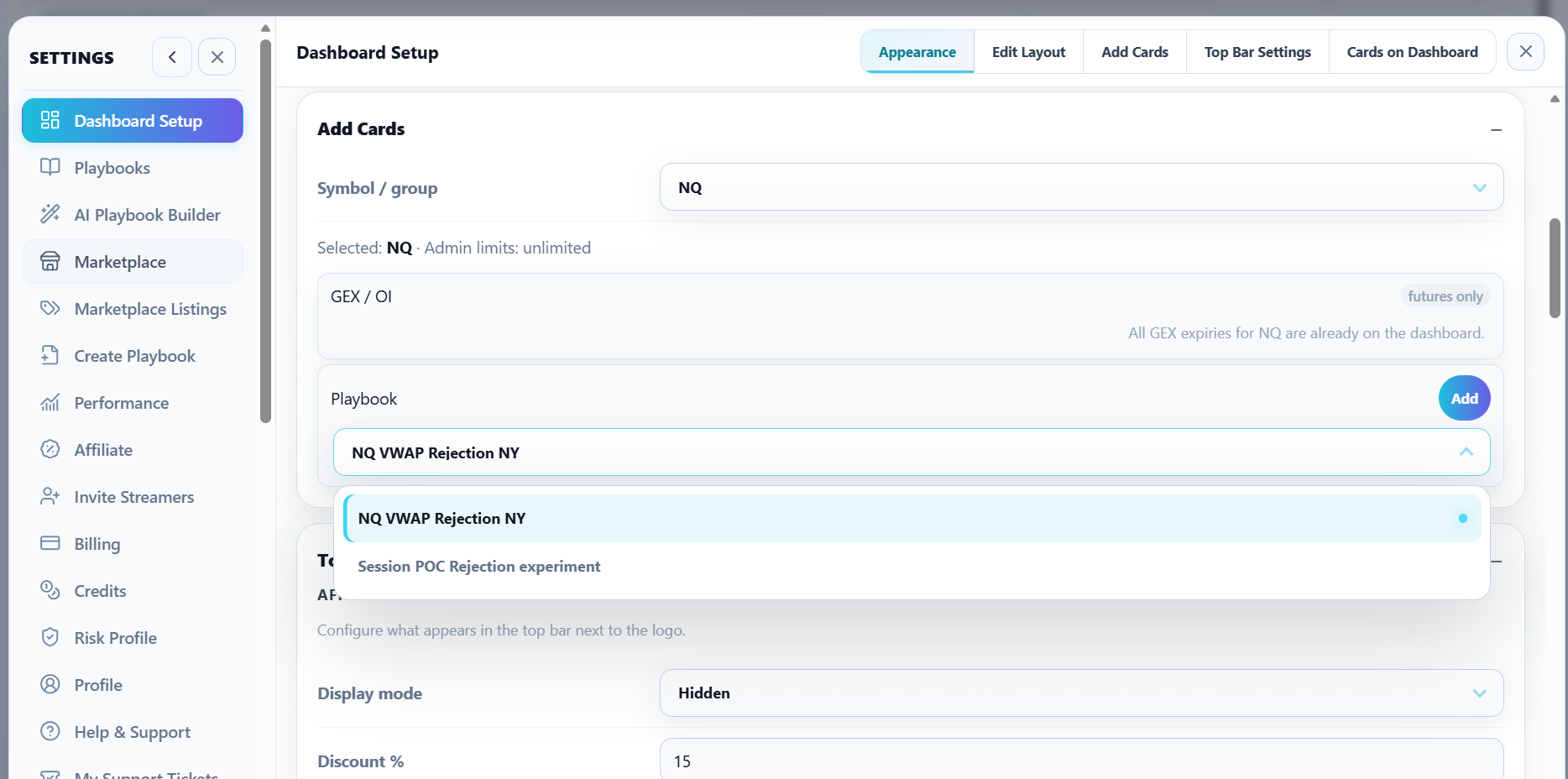
Available dashboard content can include Playbook cards, Trade Tape, Trade History, Trade Intelligence Center, GEX/OI, and Crypto Gamma where supported.
Arrange the dashboard around your priorities
When you want to reorganize the workspace:
- Open Settings → Dashboard Setup → Edit Layout.
- Enter layout-editing mode.
- Return to the dashboard.
- Drag cards into the order that makes sense for your workflow.
- Resize cards where resizing is supported.
- Exit edit mode when the workspace looks right.
A practical approach is to put the information you use while trading—such as Playbook and market-context cards—where it is visible first, and keep review-oriented cards such as Trade History or Trade Intelligence nearby for post-session analysis.
Remove a card without deleting its data
Enter layout-editing mode and use the card's remove control.
Removing a card from the dashboard normally removes only that view from the layout. It does not delete the underlying Playbook, trade history, report, or account setting associated with the feature.
That makes it safe to simplify a crowded workspace and add the card back later when you need it again.
Show or hide the Ask TensorAlgo launcher
Open Settings → Dashboard Setup → Appearance to control the floating Ask TensorAlgo launcher.
Choose Show when you want the support assistant button available directly over the dashboard. Choose Hide when you prefer a cleaner workspace.
Hiding the floating launcher does not remove TensorAlgo Help & Support or your support content. You can restore the launcher later from the same Appearance setting.
Use your available capacity intentionally
The number of cards and streamed symbols available to you depends on the account's effective limits. Some cards are also market-specific, and duplicate copies are not always supported.
If you reach a limit, consider which markets and cards are most useful for the current workflow rather than keeping inactive views on the dashboard.
When a card cannot be added
Check these items:
- the selected market supports that card type;
- the card is not already present where duplicates are unavailable;
- the account still has available GEX/Gamma-card or streamed-symbol capacity;
- the Playbook is available to the account;
- the feature is available for the current account state.
If a card is already on the dashboard but is not receiving data, use the troubleshooting article for that feature instead of repeatedly removing and re-adding it.