

Billing is where you can see what your account includes now, when the subscription changes next, and which plan or payment actions are available.
Use it as the authoritative signed-in view when you are comparing plans, checking a renewal, or trying to understand why a feature limit changed.
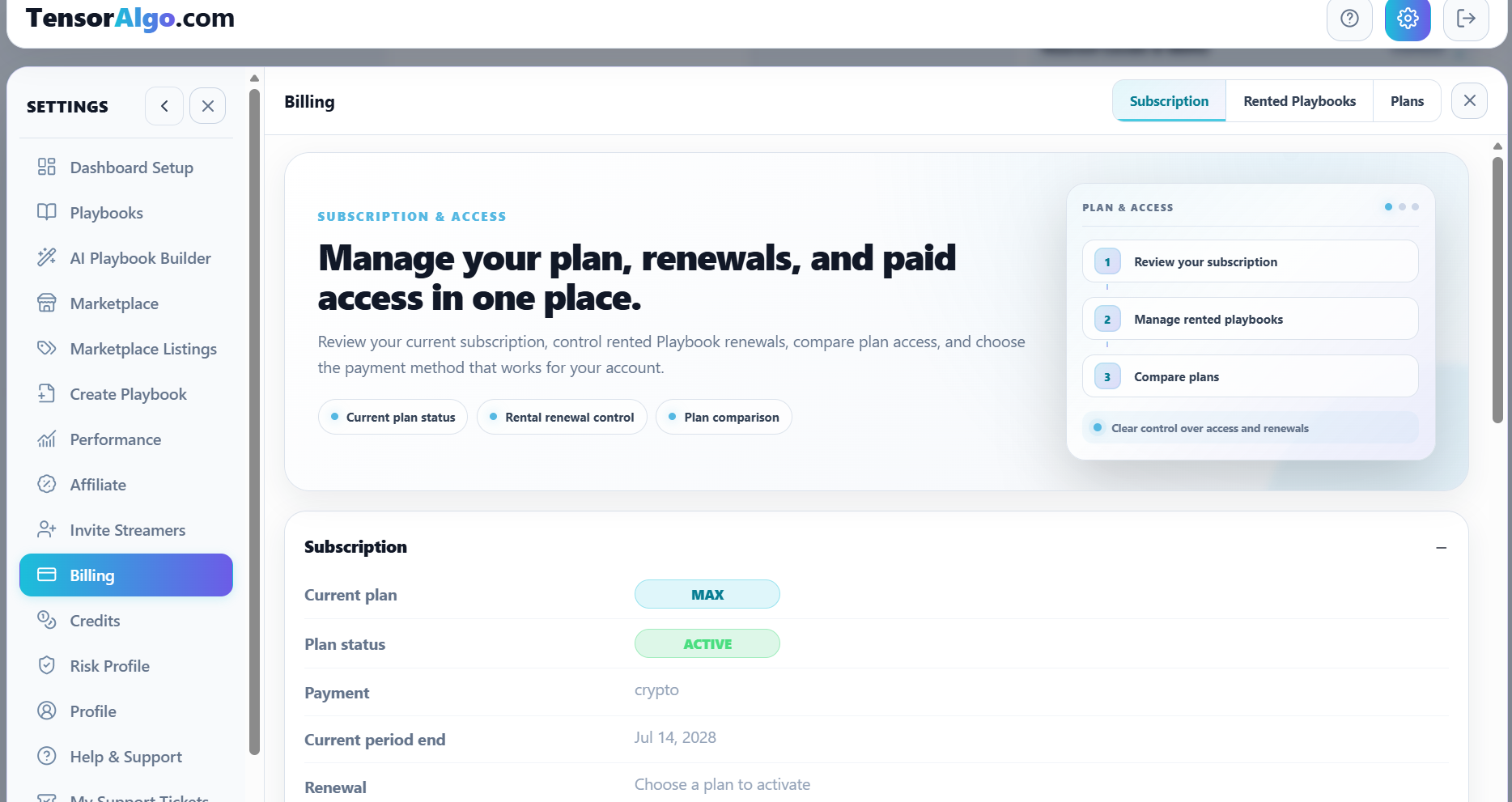
Open Billing
- Sign in to TensorAlgo.
- Open Settings → Billing.
- Use Subscription to review the current subscription state.
- Use Plans to compare available plan limits and plan actions.
The standard public paid plans are Starter, Pro, and Max.
Is there a lifetime purchase option?
No. TensorAlgo does not currently offer a lifetime purchase option. Use the plans and checkout options shown in Settings → Billing for the purchase terms currently available.
Read the subscription summary first
The Subscription area can show information such as:
- current plan;
- subscription status;
- payment method;
- current billing-period end;
- renewal or cancellation state;
- available upgrade, change, reactivation, or checkout actions.
The controls depend on the account's current billing state. For example, a user with an active subscription can see different actions from a user who needs to restart paid access.
Compare plans by the workflow you need
Do not choose a plan from one limit in isolation. The useful differences span several parts of the TensorAlgo workflow, including:
- saved and active Playbooks;
- strategies per Playbook and active-strategy capacity;
- streamed symbols;
- GEX / Gamma card capacity;
- historical-data lookback;
- CSV Trade Export;
- saved Risk Profiles;
- Marketplace publishing;
- included AI Credits.
See Plans and feature limits for the current standard public defaults. The signed-in Billing page remains authoritative for the limits actually applied to the account.
Change, upgrade, or reactivate
Use the action shown in Billing for the current account state. Depending on that state, TensorAlgo can offer actions such as:
- upgrading to another plan;
- changing plan;
- reactivating paid access;
- managing the existing subscription;
- selecting a payment method;
- completing a new checkout.
Review the plan, price, payment method, and displayed renewal terms before confirming the checkout.
Choose the payment method that fits the purchase
When the checkout offers multiple payment methods, compare them before creating the payment.
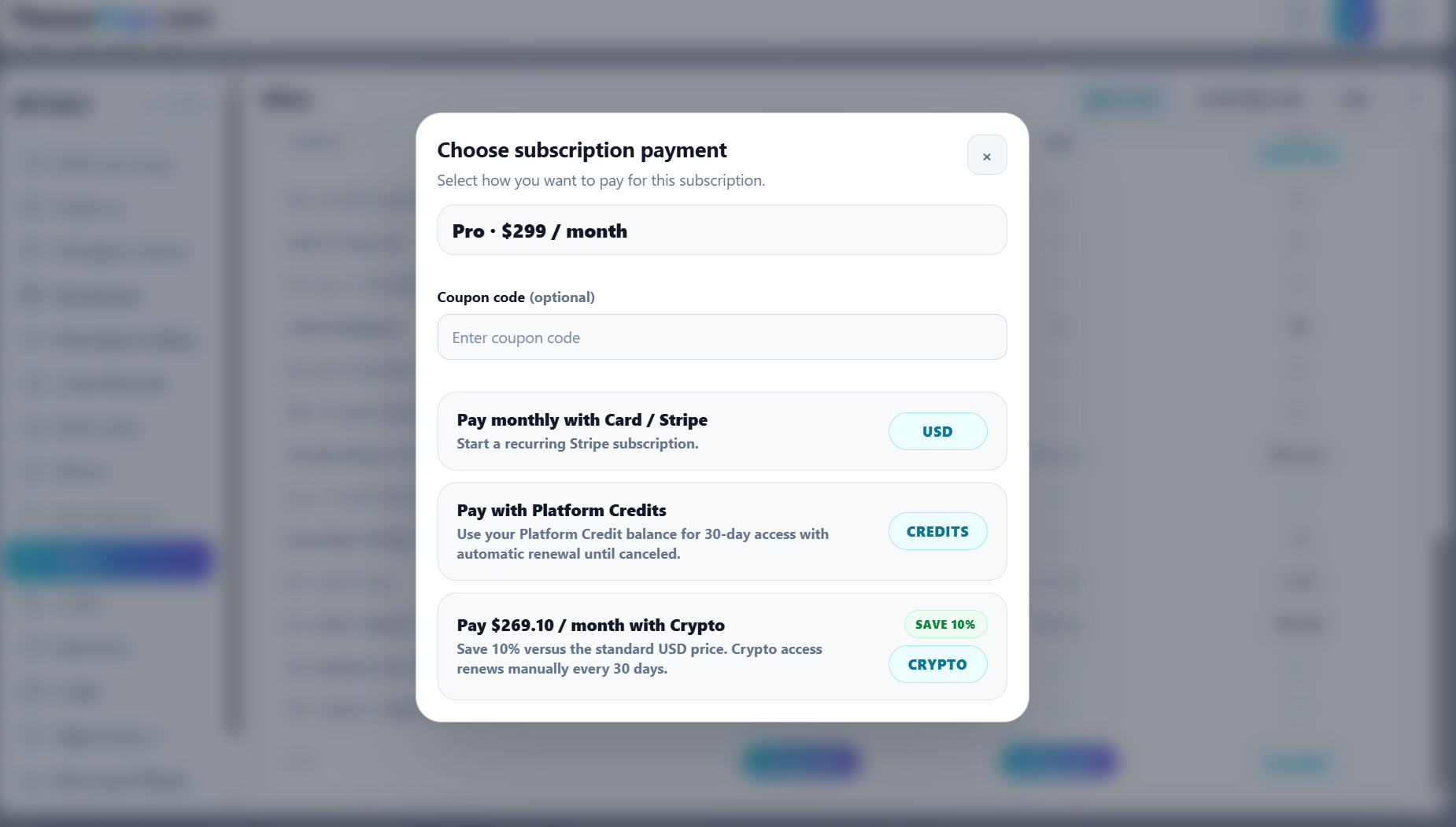
Eligible direct crypto payments receive the current 10% crypto saving shown by TensorAlgo. For monthly subscription checkout, an eligible discount code is applied first and the crypto saving is then applied to the discounted amount.
Platform Credits work differently: paying for an eligible item with Platform Credits uses the normal Platform Credit price. Buying a Platform Credit pack with crypto grants the current crypto pack bonus instead of reducing the pack's cash price.
After a successful plan change
A completed billing change should be reflected in the signed-in account state. After checkout:
- return to Settings → Billing;
- confirm the new subscription state;
- refresh the dashboard if the previous limits are still visible;
- sign out and back in once if needed;
- avoid opening repeated checkouts while a completed payment is still synchronizing.
If Billing and access do not match
If Billing shows the expected active subscription but a feature still behaves as though the previous limits apply:
- confirm the exact plan and status shown in Settings → Billing;
- refresh the dashboard;
- sign out and back in;
- compare the affected feature with the limits shown for the account;
- allow a short period for payment synchronization;
- open a Support Ticket if the mismatch remains.
Include the plan shown, the affected feature, the approximate payment/change time, and any visible transaction reference. Do not include complete card details, wallet secrets, or other payment credentials.